Wednesday, January 18, 2017

Recover unsaved SQL query scripts

Imagine a situation when you are working on a query for couple of hours and suddenly your management studio is crashed or your PC is restarted and you forgot to hit the “CTRL + S” in between.  Worst nightmare of any developer.   It is always extrmely difficult to re-create the same query again.

In the past I used to go to this folder to find my unsaved sql scripts : C:\Users\YourUsername\AppData\Local\Temp

But somehow this was never realiable.  There were few occassions when I didn’t find the query I was looking for.   Few days back I came across this table valued system fuction sys.dm_exec_sql_text which can save our day from the nightmare of not saving the scripts.  More information about this function can be found on the Books Online here: sys.dm_exec_sql_text

Now striaght away jump to the query which can help us to recover the unsaved SQL query scripts from the management studio.  

--------------------------------------------------------------------------------------------------------
USE [DATABASE_NAME]
SELECT S.LAST_EXECUTION_TIME
,T.TEXT AS [SCRIPT]
FROM SYS.DM_EXEC_QUERY_STATS AS S
CROSS APPLY SYS.DM_EXEC_SQL_TEXT(S.SQL_HANDLE) AS T
--WHERE T.TEXT LIKE '%SOMETHING%'
ORDER BY S.LAST_EXECUTION_TIME DESC

--------------------------------------------------------------------------------------------------------

Few notes:
1. You will need VIEW SERVER STATE permissions to execute this query.
2. Since there could be many queries running on the server you would like to use WHERE condition TEXT LIKE '%SOMETHING%'.  
3. You can recover the queries only till SQL Server keeps them in the memory.
4. DM_EXEC_QUERY_STATS has few more useful columns that can help you with some extra information related to your query. You may like to add them in this query.

Thanks
Mangal

Tuesday, November 17, 2015

SQL query to get the job error message from SSISDB

In SQL Server 2012 Microsoft did lot of enhancements in SSIS, especially by introducing the “Project Deployment Model”.  After this so many things got better in SSIS.  While there are so many good things about this change one thing started to irritate me and that is the error in the job history.  With this change we stopped getting the exact error messages in job history.  Instead, when we open the job history to check the reason for failure we see this message:
To view the details for the execution, right-click on the Integration Services Catalog, and open the [All Executions] report.
To get the exact job failure reason we need to go the Integration Services Catalog, right click on the Project name >> Reports >> Standard Reports >> All Executions.  These reports are very nice and detailed but every time going to these reports and trying to find the error is very irritating.  Sometimes too much information is not that good.  I have seen people making mistakes in reading these execution reports.  Most of the times we are interested in error messages only and not in other execution events.  Worst part is we can’t even copy the error message to quickly Google the error for solutions.  So I thought of doing something about it.  Every time I’m not going to open execution reports to see the error.
--------------------------------------------------------------------------------------------------------
DECLARE @DATE DATE = GETDATE() - 7 -- This is to restrict the data for last 7 days, used in ON condition
SELECT O.Operation_Id -- Not much of use
,E.Folder_Name AS Project_Name
,E.Project_name AS SSIS_Project_Name
,EM.Package_Name
,CONVERT(DATETIME, O.start_time) AS Start_Time
,CONVERT(DATETIME, O.end_time) AS End_Time
,OM.message as [Error_Message]
,EM.Event_Name
,EM.Message_Source_Name AS Component_Name
,EM.Subcomponent_Name AS Sub_Component_Name
,E.Environment_Name
,CASE E.Use32BitRunTime
WHEN 1
THEN 'Yes'
ELSE 'NO'
END Use32BitRunTime
,EM.Package_Path
,E.Executed_as_name AS Executed_By

FROM [SSISDB].[internal].[operations] AS O
INNER JOIN [SSISDB].[internal].[event_messages] AS EM
ON o.start_time >= @date -- Restrict data by date AND EM.operation_id = O.operation_id

INNER JOIN [SSISDB].[internal].[operation_messages] AS OM
ON EM.operation_id = OM.operation_id

INNER JOIN [SSISDB].[internal].[executions] AS E
ON OM.Operation_id = E.EXECUTION_ID

WHERE OM.Message_Type = 120 -- 120 means Error AND EM.event_name = 'OnError'
-- This is something i'm not sure right now but SSIS.Pipeline just adding duplicates so I'm removing it. AND ISNULL(EM.subcomponent_name, '') <> 'SSIS.Pipeline'
ORDER BY EM.operation_id DESC

--------------------------------------------------------------------------------------------------------
A quick SQL query to get the exact error would be nice.   And as I expected, all the package execution logs and error messages are stored in the SSISDB internal tables.   I created below sql script to query the SSISDB to get the exact error messages:
This was simple script to get the errors from SSISDB instead of going to Integration Services Catalogs execution reports.  Though this query is still work in progress, there could be scope for performance improvement or adding more information.  I’m still understanding the tables in SSISDB.  I’ll keep on posting the updates if any.
Mangal Pardeshi

Saturday, November 14, 2015

Dynamic PIVOT in SQL

Today I’m going to show you how to write a PIVOT query when column names are dynamic.  A dynamic pivot is very necessary when you don’t know the column names or column names can change with the time or due to any other reason.  I’m not going to discuss the pros and cons of the dynamic sql or even the Pivot itself (in my opinion pivoting of data should be handled at the reporting level.).  So let see how to write a dynamic pivot query with a very simplified example.

First lets create some sample data:
--------------------------------------------------------------------------------------------------------
-- create table
CREATE TABLE Orders
(
OrderID INT,
ProductName VARCHAR(50),
Quantity INT,
OrderDate DATE
);
-- insert some sample data
INSERT INTO Orders
VALUES
(1, 'Pen', 100, GETDATE()-1),
(2, 'Pen', 200, GETDATE()-2),
(3, 'Pen', 300, GETDATE()-3),
(4, 'Pencil', 500, GETDATE()-1),
(5, 'Pencil', 600, GETDATE()-2),
(6, 'Pencil', 400, GETDATE()-3),
(7, 'Eraser', 30, GETDATE()-1),
(8, 'Eraser', 20, GETDATE()-2),
(9, 'Eraser', 10, GETDATE()-3),
(10, 'Pen', 100, GETDATE()-4),
(11, 'Pencil', 500, GETDATE()-4),
(12, 'Eraser', 30, GETDATE()-4);
-- verify the data
SELECT *
FROM Orders

--------------------------------------------------------------------------------------------------------
This is how our data looks like:
Data
Requirement:  Now I want to Pivot this data on the column OrderDate.  I want to show the last 3 dates of OrderDates in the column and respective quantity of each Product under the Date.  Here is the expected output, though you need to remember that you will get different column names(dates) as my sample data itself is dynamic: 
Expected
Now first understand the challenges.  Our requirement is to show the last 3 days of OrderDate.  Today I’m writing this post that’s why last days are 11 Nov – 13 Nov, but tomorrow I’ll want my query to show the dates 12 Nov – 14 Nov.  It will continue to change.  Every time changing these dates in our query can be difficult/painful/irritating.   And that’s where dynamic SQL comes into the picture.  The main challenge is to get these ever changing column names and pass them into the PIVOT block without hard-coding and also into the SELECT clause.

Lets do one thing at a time.  First we will try to get the last 3 OrderDates and concatenate them in desired order and format.  For that I’m going to use XML PATH.  Note that, there could be other methods to concatenate the column names into a single variable.  Here is my code to get the column names dynamically into a variable:
--------------------------------------------------------------------------------------------------------
DECLARE @ColumnNames VARCHAR(1000)

SELECT @ColumnNames = 
           STUFF(( SELECT DISTINCT TOP 100 
           ', ' + QUOTENAME(CONVERT(VARCHAR(10), OrderDate, 120)) 
           FROM Orders 
           WHERE OrderDate > DATEADD(DD, -4, GETDATE()) 
           ORDER BY ', ' + QUOTENAME(CONVERT(VARCHAR(10), OrderDate, 120)) DESC
           FOR XML PATH('') 
           ), 1, 2, '')
-- Just to check how we are getting the column names
PRINT @ColumnNames

--------------------------------------------------------------------------------------------------------
Few notes on above query:
1. DISTINCT is needed because one OrderDate is appearing multiple times in the table.
2. TOP 100 is needed because I want to order the dates in the descending order. Since our query is actually a sub-query, TOP hack is needed. I put the number 100 just randomly, I could have simply used TOP 3 because I want only top 3 dates.  When you are not sure about the number of columns you can either put a relatively large number like 100 or TOP 100 PERCENT.
3. In WHERE clause I'm restricting the dates to last 3 dates from getdate() i.e. from "TODAY".
4. I'm also converting OrderDate to varchar and using the style 120 to get the dates in the desired format.  In my case I want the dates in yyyy-mm-dd, that's why the style 120.
This is how we get column names from above query: [2015-11-13], [2015-11-12], [2015-11-11]

Now here is our PIVOT query by using dynamic column names created above:
--------------------------------------------------------------------------------------------------------
DECLARE @ColumnNames VARCHAR(1000)
DECLARE @Query VARCHAR(4000)

-- This part is already explained above
SELECT @ColumnNames = 
           STUFF(( SELECT DISTINCT TOP 100 
           ', ' + QUOTENAME(CONVERT(VARCHAR(10), OrderDate, 120)) 
           FROM Orders 
           WHERE OrderDate > DATEADD(DD, -4, GETDATE()) 
           ORDER BY ', ' + QUOTENAME(CONVERT(VARCHAR(10), OrderDate, 120)) DESC
           FOR XML PATH('') 
           ), 1, 2, '')

-- Preparing our PVIOT query
SET @Query = 'SELECT ProductName, ' +
@ColumnNames + '
FROM
        ( SELECT ProductName
                     ,Quantity
                     ,OrderDate
          FROM Orders
        ) AS M
PIVOT
       (
         SUM( Quantity )
         FOR OrderDate IN ( '
+ @ColumnNames + ' ) 
       ) AS P
'
--Executing @Query to get the result
EXECUTE(@Query)

--------------------------------------------------------------------------------------------------------

You may also like to see my other post on Pivot: PIVOT Multiple Columns in SQL Server

Mangal Pardeshi

Thursday, November 12, 2015

Fastest way to find the row count of all the tables in SQL

Let me show you 2 simple queries to find the row count of all the tables in a Database.

Some time back I shared a trick to quickly find the row count of a table in SQL Server.  Now lets take it to next level and try to get the row count of all the tables in a Database.  There are 3-4 ways to do that, but I’m going to show you only 2 very identical methods.

1. Using Catalog View sys.partitions:

Here is the script to find the row count of all the tables using sys.partitions.  If you are a normal developer, who doesn’t have high level of permissions on a production Servers, this is the best method for you to find the row count of all the tables quickly.
--------------------------------------------------------------------------------------------------------
SELECT T.NAME AS TableName 
           ,SUM(P.ROWS) AS [RowCount]
FROM sys.partitions AS P
INNER JOIN sys.tables AS T
ON P.OBJECT_ID = T.OBJECT_ID
WHERE P.INDEX_ID < 2
GROUP BY T.NAME
ORDER BY [RowCount] DESC

--------------------------------------------------------------------------------------------------------

2. Using DMV sys.dm_db_partition_stats:

--------------------------------------------------------------------------------------------------------
SELECT T.NAME AS TableName 
           ,SUM(S.ROW_COUNT) AS [RowCount]
FROM sys.dm_db_partition_stats AS S
INNER JOIN sys.tables AS T
ON S.OBJECT_ID = T.OBJECT_ID
WHERE S.INDEX_ID < 2
GROUP BY T.NAME
ORDER BY [RowCount] DESC

--------------------------------------------------------------------------------------------------------

Actually nothing to chose between 2 methods, they both are quite identical, performance wise also both are very same.  Only difference between them is permissions needed to execute them.  While catalog view sys.partitions requires membership in the public role.  Effectively even if you have only “read only” access on a database, you can still use the 1st method.  On the other hand it requires VIEW DATABASE STATE permission to query the sys.dm_db_partition_stats dynamic management view.  So if you are a normal developer “sometimes” it is difficult to get that level of permissions.

And yes, as I already mentioned previously there is a chance that you will get the approximate row count if statistics are not updated.  This applies to both the methods.

To know more about the views see:
1. sys.partitions
2. sys.dm_db_partition_stats

See my couple of other posts on similar topics:
1. Fastest way to find the row count of a table in SQL Server
2. Find the row count of temporary tables in SQL Server

Thanks
Mangal Pardeshi

Friday, November 6, 2015

Disk space monitoring of SQL Server

Recently I was working on creating a custom dashboard to monitor the health of all the database servers.  One thing I wanted to add to the dashboard was “Available Disk Space” on the data drives of SQL Server instances.  And I thought I’m not going to get this information in any system table or DMV and I’ll need to get the disk space information via some window commands or something.  Then I came across this dynamic management function sys.dm_os_volume_stats ,  which provided the exact information I was looking for.

sys.dm_os_volume_stats:

Returns information about the operating system volume (directory) on which the specified databases and files are stored in SQL Server. Use this dynamic management function to check the attributes of the physical disk drive or return available free space information about the directory.

Here is the script that gives you the useful information about the total and available size of attached data volumes on SQL Server instance.
--------------------------------------------------------------------------------------------------------
SELECT DISTINCT d.logical_volume_name AS LogicalName
,d.volume_mount_point AS DriveName
,CONVERT(NUMERIC(32,2),d.available_bytes *1.00/(1048576.0 *1024 ))AS FreeSpaceInGB
,CONVERT(NUMERIC(32,2),d.Total_Bytes *1.00/(1048576.0 *1024 )) AS TotalSizeInGB
FROM sys.master_files f
CROSS APPLY sys.dm_os_volume_stats(f.database_id, f.FILE_ID) d
ORDER BY FreeSpaceInGB

--------------------------------------------------------------------------------------------------------

This script is very useful in monitoring the data volumes, tracking the growth of the data, detecting the low disk space on the data drive of SQL Server etc.  I have implemented the low disk space alert on my Servers using this script.

Thanks
Mangal Pardeshi

Wednesday, November 4, 2015

Row Count of Temporary Tables

In this post I’ll show you a quick trick to find the rowcount of temporary tables in SQL Server.
Imagine a situation where you are executing a stored procedure that has many SQL queries. In the stored procedure there are few temporary tables.   Query is creating temporary tables, inserting rows into them and then performing some actions.  While this stored procedure is executing you want to track the progress of the execution.  To be more specific you want to know how many rows are inserted into a particular temporary table.  Knowing the row count of a temporary table in another sessions seems to be pretty impossible, right?   Actually it is very easy.  By using below script:
--------------------------------------------------------------------------------------------------------
SELECT T.NAME AS TABLE_NAME
           ,S.ROW_COUNT 
FROM TEMPDB.sys.dm_db_partition_stats AS S
INNER JOIN TEMPDB.sys.tables AS T
ON S.OBJECT_ID = T.OBJECT_ID
WHERE 
S.INDEX_ID < 2
--------------------------------------------------------------------------------------------------------
Note:  To keep it simple I’m assuming you don’t have partitioned tables, anyways it is pointless to create partitions in a temporary table. 
By executing above script you can get the row count of all the temporary tables created on the server.  In my last post Fastest way to find the row count of a table I mentioned about the system DMV maintained by the SQL Server sys.dm_db_partition_stats.  sys.dm_db_partition_stats returns page and row-count information for every partition in the current database.  We also know that all the temporary tables are created in the tempdb database.  So if we execute the sys.dm_db_partition_stats in the tempdb we can get the row count of the tables in the tembdb database and also the temporary tables created by users.
BUT, there is one thing you should be aware.  When we create the temporary table we know that it gets created in the tembdb database but not with the exact same name.  SQL Server engine adds some extra (random) characters into the name.  Mostly lots of underscores followed by some number.   See the below image, I created one temporary table #T and immediately executed above script:
TempTable
You just need to little smart while giving the name to temporary tables.  Otherwise by habit many users can create temporary table with same name (typically #temp or #t) then it will be difficult to know which table is created by which user.  So if you give some meaningful names while creating temporary table (e.g. #OrdersLastMonth), above script to know the row_count of temporary tables can really help you.
I hope this script of finding the row count of temporary tables in SQL Server will be useful to you.  Do let me know your feedback.
Thanks
Mangal Pardeshi

Sunday, November 1, 2015

Fastest way to get the Row Count of a table

Finding the row count of a table is probably the most frequently performed task by SQL developers/programmers.  So the obvious thing we all look for is: what is the fastest way to find the row count of a table?  Of course there are few ways, I’ll discuss them in this post.  However, if you ask me the same question my immediate response without blinking an eye will be using built-in stored procedure SP_SPACEUSED.  It is very easy to use with simple syntax:
--------------------------------------------------------------------------------------------------------
sp_spaceused your_table_name
--------------------------------------------------------------------------------------------------------
and within a second you will get the rowcount of the given table, doesn't matter how big the table is. To know more about the SP_SPACEUSED please see: sp_spaceused (Transact-SQL)

Remarks:

Now there are certain things you need to keep in mind while using sp_spaceused:
1. sp_spaceused relies on DMV sys.dm_db_partition_stats to get the rowcount.  So there is a chance that you will get the approximate row count if statistics are not updated.  To get the exact count you can update the statistics using DBCC UPDATEUSAGE .  However this can take long time if the table is really huge. 

2. If the table is part of the default dbo schema then you don’t need to pass the schema name in the syntax.  However if the table is created under some different or custom schema then you need to pass the schema name also.  But if you try to execute sp_spaceused schema_name.your_table_name you will get the error:
Msg 102, Level 15, State 1, Line 1
Incorrect syntax near '.'.

This become even more difficult if schema name has your domain name as well, e.g. your table name is domain\user_name.table_name and you try to use sp_spaceused domain\user_name.table_name you will get the error:
Msg 102, Level 15, State 1, Line 1
Incorrect syntax near '\'.

In that case you just need to pass your table name within the single quotes:
--------------------------------------------------------------------------------------------------------
sp_spaceused 'schema_name.your_table_name'
go
-- or
sp_spaceused
'domain\schema_name.your_table_name'
--------------------------------------------------------------------------------------------------------

Now coming to back some positives:  This is my favorite method despite the fact that sp_spaceused sometimes can give me approximate row count.   First reason I like sp_spaceused is, it is extremely fast, syntax is simple, I don’t need to remember some DMV names.  Another reason is, I can use it even when some DML operations are being performed on the table. For example you are inserting large number of rows in a table, query is still executing and you want to know how many rows are inserted in the table.  sp_spaceused can you give you the row count of a table even middle of a INSERT query.  Very very useful in tracking the progress of big INSERT query. 

Now having said that row count we get from sp_spaceused or the DMV sys.dm_db_partition_stats is not always accurate, personally I have never observed any difference.   Even if there is a difference I guess it is negligible. 

Now quickly discuss the couple of other methods to find the row count of a table.

Using DMV sys.dm_db_partition_stats:

This is another very quick method to get the rowcount of a table.
--------------------------------------------------------------------------------------------------------
SELECT SUM (row_count)
FROM sys.dm_db_partition_stats
WHERE object_id=OBJECT_ID('table_name')
AND index_id < 2;

--------------------------------------------------------------------------------------------------------
Interesting thing is even sp_spaceused relies on the same table to get the row_count.  But of course writing and remembering sp_spaceused table_name is much easier than this, right?  You can also get the row count using sysindexes, but I’m skipping that.

Using COUNT function:

Now this is the most reliable, known but also a slow method to find the row count of a table, especially if the table size  is in millions or billions.   Actually I don’t need to talk about the COUNT function, because everyone knows about it, but I’m mentioning it in this post because of a myth.  There is some misconception going around that if you write COUNT(1) instead of COUNT ( * ) you will get faster result.  That is a total myth.  Many experts have tested it, written about it and you can find many articles online comparing the performance of COUNT(1) and COUNT ( * )  and concluding that there is absolutely no performance difference between them.   Here is one such article by Beaulin Twinkle: SQL Server: count(*) or count (1) or count(”) Which is better?

Thanks
Mangal Pardeshi

Thursday, October 29, 2015

LPAD and RPAD in SQL Server using FORMAT

In SQL Server 2012 Microsoft introduced a new T-SQL function FORMAT.  This function returns a value formatted with the specified format and optional culture.  This function can be very useful in formatting Numeric and Date values.  In this post I’ll show you a simple use of FORMAT function to do the padding similar to LPAD and RPAD functions in Oracle.

First lets create some sample data:
--------------------------------------------------------------------------------------------------------
CREATE TABLE #Temp(Id INT)
GO

--Now insert the table Temp with some sample data:
INSERT INTO #Temp SELECT
1 UNION SELECT
2 UNION SELECT
12 UNION SELECT
123 UNION SELECT
1234 UNION SELECT
12345
GO

SELECT ID
FROM #TEMP

--------------------------------------------------------------------------------------------------------

First lets see how to do the LPAD, will talk about RPAD separately because it need some extra efforts.  Will try to do the padding till 5 digits.  Means if there is only 1 digit in column then we need to add extra 4 zeros to the left.  With FORMAT function it actually becomes very very easy.  If you know the syntax of FORMAT function =>> FORMAT ( value, format [, culture ] )  then you just need to put ‘00000’ (number of digits you want to do the padding) at the place of format. 
--------------------------------------------------------------------------------------------------------
SELECT ID ,
FORMAT(ID, '00000') AS LPAD_EXAMPLE
FROM #TEMP

--------------------------------------------------------------------------------------------------------

For the RPAD you need to do little differently.  While defining the format of ‘00000’ we need to add ‘#’ (which represent the value/column) before it:
--------------------------------------------------------------------------------------------------------
SELECT ID ,
FORMAT(ID, '#''00000') AS RPAD_EXAMPLE
FROM #TEMP

--------------------------------------------------------------------------------------------------------

See the combine result of above 2 queries:

LPAD_RPAD

For more about the function see: FORMAT (Transact-SQL)

Also check my post about new T-SQL functions introduced in SQL Server see: New T-SQL programming enhancements in SQL Server 2012

In my future posts I’ll try show more different ways we can use FORMAT function.

Thanks
Mangal Pardeshi

Monday, October 26, 2015

Maximum number of Tables in a SQL Database

Recently somebody asked this question on Stackoverflow forums “How many tables we can create on a SQL Server database”.  And I thought I should write about it on my blog.   Though for normal SQL programmers this shouldn’t matter and mostly some weird people ask this question in interviews, and I don’t know why. 

Anyways, since we are talking about it let me answer this question.  Actually in SQL Server, Microsoft has not defined any limit on number of tables but there is a limit on the number of Objects in a database. 

According to Maximum Capacity Specifications for SQL Server Tables per database are limited by number of objects in a database.  Database objects include objects such as tables, views, stored procedures, user-defined functions, triggers, rules, defaults, and constraints. The sum of the number of all objects in a database cannot exceed 2,147,483,647.

So if there are NO other objects created in a database you can create 2,147,483,647 number of tables in SQL Server database.

And if I’m I’m right then I guess this limit is pretty much constant since SQL Server 2005 to SQL Server 2014.

To know more about the maximum sizes and numbers of various objects defined in SQL Server components you can check out: Maximum Capacity Specifications for SQL Server

Thanks
Mangal Pardeshi

Saturday, October 24, 2015

How to Calculate Running Totals in SQL Server

Back in 2009 I wrote this post about How to Calculate the Running Totals in SQL Server.  Back then(before SQL Server 2012)  this was one of the “difficult” queries to write.  We used to do that by writing a  co-related sub-query or some time even Cursor was used for calculating running totals.

Then Microsoft came up with this much awaited enhancement in OVER() clause in SQL Server 2012.  Now the OVER() is extended fully to aggregate functions like SUM, COUNT and AVG.  In simple words now we can write ORDER BY in OVER() clause for aggregate functions as well.  And this feature has made running total calculations extremely easy and efficient.

On the same line with my previous post, the different scenarios I’ll be covering in this post are -

  • Running Total for all records.
  • Running Total on each Group of Records.
  • Running Total on each Date.

Create Sample Data:
--------------------------------------------------------------------------------------------------------

-- Create Table
CREATE TABLE #Sales
( ShipId INT,
OrderId INT,
ShipDate DateTime,
Quantity INT
)
GO
-- Load Sample Data
INSERT INTO #Sales
VALUES
(1,1, '2015-10-01 12:06:16:820PM',10),
(2,1, '2015-10-02 04:16:16:820PM',15),
(3,2, '2015-10-01 01:26:16:820PM',20),
(4,2, '2015-10-03 02:40:16:820PM',12),
(5,2, '2015-10-04 01:05:16:820PM',15),
(6,3, '2015-10-03 05:25:16:820PM',25),
(7,3, '2015-10-04 03:50:16:820PM',50),
(8,3, '2015-10-05 07:40:16:820PM',30),
(9,4, '2015-10-06 03:30:16:820PM',20),
(10,4, '2015-10-07 04:20:16:820PM',10),
(11,5, '2015-10-05 05:05:16:820PM',35)

--------------------------------------------------------------------------------------------------------
This is how our sample data looks like:
Sample

Case I : Running Total For all records.  Now this is the simplest case where I’ll show you how to calculate the running totals for all the records in the order of ShipDate.  If you remember old ways then we needed to write some weird looking co-related sub query to achieve that.  But this can be easily achieved now by simply SUM(Quantity) OVER(ORDER BY ShipDate).
Note: I’m assuming you know the basics of OVER() clause.

--------------------------------------------------------------------------------------------------------
SELECT *
,SUM(Quantity) OVER(ORDER BY ShipDate) AS RunningTotal
FROM #SALES
ORDER BY ShipDate
--------------------------------------------------------------------------------------------------------
Here is the result returned by above query :
All

Case II: Running Total on each Group of Records.
Now instead of calculating the running total for each record we will calculate the running total for each OrderId.  To do that we just need to ad PARTITION BY OrderID in the OVER clause.

--------------------------------------------------------------------------------------------------------
SELECT *
,SUM(Quantity) OVER(PARTITION BY OrderId ORDER BY ShipDate) AS RunningTotal
FROM #SALES
ORDER BY OrderId, ShipDate
--------------------------------------------------------------------------------------------------------
Output:
Order

Case III: Running Total on each Date.
Now we will see how to calculate the Running Total for each day. For that of course we need to put ShipDate in the PARTITION BY but also need to remove the time portion from the date.  We can do that by simply converting ShipDate to DATE format.  See below query:

--------------------------------------------------------------------------------------------------------
SELECT *
,SUM(Quantity) OVER(PARTITION BY CONVERT(DATE, ShipDate) ORDER BY ShipDate) AS RunningTotal
FROM #SALES
ORDER BY ShipDate
--------------------------------------------------------------------------------------------------------
Output:
Date

I hope you like this.  Do give me your feedback.

Thanks
Mangal Pardeshi

Thursday, October 22, 2015

New T-SQL programming enhancements in SQL Server 2012

In SQL Server 2012 and 2014 Microsoft introduced many new features and enhancements. In fact there were 14 new in-built functions introduced in SQL Server 2012.  However I noticed that for some reason I don’t see many people using them.  In my company we upgraded all our servers to 2014 from 2008R2 almost a year back but I see none of the developers using them or even aware.  Also in last 6 months I interviewed many people and one of the question I asked to candidates that are you aware of any new features of SQL Server 2012/14?  While most of the people talked about the changes in SSIS, project deployment etc but very few knew about the 14 new in-built functions introduced in SQL Server 2012. 

So I thought of writing about these new in-built functions. In this post I’m not going to write the details of these function.  This is just going to be a reminder that now we have 14 more in-built functions that can help us in writing SQL code. 

Conversion functions

1. PARSE (Transact-SQL) : PARSE function converts the string expression to the requested data type. And if it fails to translate then raises an exception.

2. TRY_CONVERT (Transact-SQL): Returns a value cast to the specified data type if the cast succeeds; otherwise, returns null.

3. TRY_PARSE (Transact-SQL): Returns the result of an expression, translated to the requested data type, or null if the cast fails

You might wonder what is the difference between PARSE and CONVERT or may be PARSE and TRY_PARSE; I’ll try to explain that in my next few posts.


Date and time functions

4. DATEFROMPARTS (Transact-SQL): Returns a date value for the specified year, month, and day.

5. DATETIME2FROMPARTS (Transact-SQL): Returns a datetime2 value for the specified date and time and with the specified precision.

6. DATETIMEFROMPARTS (Transact-SQL): Returns a datetime value for the specified date and time.

7. DATETIMEOFFSETFROMPARTS (Transact-SQL): Returns a datetimeoffset value for the specified date and time and with the specified offsets and precision.

8. EOMONTH (Transact-SQL): Returns the last day of the month that contains the specified date, with an optional offset.

9. SMALLDATETIMEFROMPARTS (Transact-SQL): Returns a smalldatetime value for the specified date and time.

10. TIMEFROMPARTS (Transact-SQL): Returns a time value for the specified time and with the specified precision.


Logical functions

11. CHOOSE (Transact-SQL): Returns the item at the specified index from a list of values.

12. IIF (Transact-SQL): Returns one of two values, depending on whether the Boolean expression evaluates to true or false.


String functions

13. CONCAT (Transact-SQL): Returns a string that is the result of concatenating two or more string values.

14. FORMAT (Transact-SQL): Returns a value formatted with the specified format and optional culture.

To know more about each of these new functions you can click on the names of the functions.  In my future posts I’ll try explain each of these functions in details with some examples and situation where they can be useful.


To know more about the new features introduced in the SQL Server please follow below links:

What's New in SQL Server 2012
What's New in SQL Server 2014

A Sneak Peek into the Future: What's New in SQL Server 2016

Thanks
Mangal Pardeshi

Saturday, July 27, 2013

Different methods to execute large query in small batches

Today I’ll show you some different methods to run a DML operation like UPDATE in small batches for a large table.  Though I’m going to show only UPDATE statements, methods are applicable to DELETE and INSERTS as well.   When you want  to run an UPDATE  query(or other DML operations) over a very huge table having  over a billion rows or even  100s of Million it is recommended that you should not update them at one go.  DML queries on a very large number of rows can cause performance issues, transaction log might get full, affects concurrent users, eats up lot of server resources, runs for hours and many other.   Good practice is that you should break the number of records in small batches of few thousand and update them.  This way you will use minimum server resources and most importantly you will prevent the transaction log file from getting full.

First lets create one table and insert some sample data.

--------------------------------------------------------------------------------------------------------

-- Create the table
CREATE TABLE #A
(
ID INT,
CREATED_DATE  DATE,
METHOD VARCHAR(10)
)

-- Insert 10000 rows in the table
;WITH MANGAL AS
(
SELECT 1 AS ID, CONVERT(DATE,'20000101') AS CREATED_DATE
UNION ALL
SELECT ID+1, DATEADD(DD, 1, CREATED_DATE)
FROM MANGAL
WHERE ID <= 9999

)
INSERT INTO #A(ID, CREATED_DATE)
SELECT ID, CREATED_DATE
FROM MANGAL

OPTION (MAXRECURSION 10000);

-- Check sample data
SELECT *
FROM #A

--------------------------------------------------------------------------------------------------------

This is not the most efficient way to generate some random data using a recursive CTE but I like it so I’m using it.

I. Using a TOP and GO:

This is the simplest method to run a query in a small batches.  I frequently use this method in development when I want to update some records quickly without thinking much.  Note the GO 10 in the query.  An integer after GO will execute the preceding query specified number of times.  In this case update statement will execute 10 times(I know there are 10000 rows in the table and I’m using TOP 1000, simple math).

------------------------------------------------------------------------------------------------------
UPDATE TOP (1000) #A
SET METHOD = 'I'
WHERE METHOD IS NULL
GO 10

-- Verify result
SELECT *
FROM #A

------------------------------------------------------------------------------------------------------

All the queries are quite simple  and they are self explanatory so I’m not going to explain them in detail.

II. Using ROWCOUNT and GO:

Same query but without the TOP operator.  Here I’m using a ROWCOUNT function to limit the number of rows in the batch.  ROWCOUNT causes SQL Server to stop processing the query after the specified number of rows are returned.

------------------------------------------------------------------------------------------------------
SET ROWCOUNT 1000
UPDATE #A
SET METHOD = 'II'
WHERE METHOD <> 'II'
GO 10

SET ROWCOUNT 0

-- Verify result
SELECT *
FROM #A

------------------------------------------------------------------------------------------------------ IMPORTANT:  Using SET ROWCOUNT will not affect DELETE, INSERT, and UPDATE statements in a future release of SQL Server. Avoid using SET ROWCOUNT with DELETE, INSERT, and UPDATE statements in new development work, and plan to modify applications that currently use it. For a similar behavior, use the TOP syntax.

III. Using TOP and GOTO:

Now instead of GO I’ll use GOTO to run the batch multiple times.  The GOTO statement causes the execution of the T-SQL batch to stop processing the following commands to GOTO and processing continues from the label where GOTO points.  Here I’ll use GOTO to keep processing the particular label until it’s @@ROWCOUNT becomes zero.

------------------------------------------------------------------------------------------------------ UPDATE_BATCH:

UPDATE TOP (3000) #A
SET METHOD = 'III'
WHERE METHOD <> 'III'
IF @@ROWCOUNT > 0  GOTO UPDATE_BATCH

-- Verify result
SELECT *
FROM #A

------------------------------------------------------------------------------------------------------

IV. Using ROWCOUNT and GOTO:

Same GOTO concept with ROWCOUNT.

------------------------------------------------------------------------------------------------------

SET ROWCOUNT 3500
UPDATE_BATCH:

UPDATE  #A
SET METHOD = 'IV'
WHERE METHOD <> 'IV'
IF @@ROWCOUNT > 0  GOTO UPDATE_BATCH

SET ROWCOUNT 0
-- verify result
SELECT *
FROM #A

------------------------------------------------------------------------------------------------------

V. Using WHILE and BREAK:

Here I’m taking the help of an infinite WHILE loop ( WHILE 1=1 ) to run the batch multiple times and using the BREAK to exit the loop when @@ROWCOUNT becomes zero.

------------------------------------------------------------------------------------------------------

WHILE (1=1)
BEGIN

    BEGIN TRANSACTION
       
        UPDATE TOP(3333) #A
        SET METHOD = 'V'
        WHERE METHOD <> 'V'
   
        IF @@ROWCOUNT = 0
            BEGIN
            COMMIT TRANSACTION
            BREAK
        END
    COMMIT TRANSACTION
END

-- Verify result
SELECT *
FROM #A

------------------------------------------------------------------------------------------------------

Same can be implemented using ROWCOUNT as I already shown.

VI. Using a Sequence column and WHILE:

Now an entirely different method.  Not using GO, GOTO or BREAK.  This method is more systematic where you have more control on how query is going to execute.  Note that when you use TOP or ROWCOUNT you actually have no control on which rows are going to get updated.  Sorting is completely dependent on the query plan created by the query engine.

------------------------------------------------------------------------------------------------------

DECLARE @C INT
DECLARE @I INT
DECLARE @L INT
DECLARE @MAX INT

SET @C = 1
SET @I = 2200
SET @L = @C + @I
SET @MAX = (SELECT MAX(ID) FROM #A)

SELECT @C AS C, @I AS I, @L AS L, @MAX AS MAX

WHILE @C < @MAX
BEGIN 

    UPDATE #A
    SET METHOD = 'VI'
    WHERE ID >= @C
    AND ID < @L

SET @C = @L -- OR SET @C = @C + @I
SET @L = @L + @I

END

-- Verify result
SELECT *
FROM #A

------------------------------------------------------------------------------------------------------

VII. Using a date range and WHILE:

On similar lines if we don’t have a reliable sequence column or we want to use a date column to update the records by month or year.

------------------------------------------------------------------------------------------------------

DECLARE @C DATE
DECLARE @I DATE
DECLARE @MAX DATE

SELECT    @C = MIN(CREATED_DATE),
        @MAX = MAX(CREATED_DATE)        
FROM #A

SET @I =  DATEADD(YEAR, DATEDIFF(YEAR, 0, @C)+1, 0)

--SELECT @C AS C, @I AS I , @MAX AS MAX

WHILE @C <= @MAX

BEGIN
    UPDATE #A
    SET METHOD = 'VII'
    WHERE CREATED_DATE >= @C
    AND CREATED_DATE < @I

SET @C = @I
SET @I = DATEADD(YEAR, 1, @I)

--SELECT @C, @I
END

-- Verify result
SELECT *
FROM #A

------------------------------------------------------------------------------------------------------

VIII.  Using WHILE without GO, GOTO or BREAK:

One last method from me without using GO, GOTO and BREAK but relatively simpler compare to last 2 methods.  Because different people will advise you not to use GO, GOTO and BREAK in SQL.

------------------------------------------------------------------------------------------------------

DECLARE @ROWCOUNT INT = 1
DECLARE @C INT = 2800

WHILE (@ROWCOUNT > 0)
BEGIN
    UPDATE TOP (@C) #A
    SET METHOD = 'VIII'
    WHERE METHOD <> 'VIII'

SET @ROWCOUNT = @@ROWCOUNT
END

-- Verify result
SELECT *
FROM #A

------------------------------------------------------------------------------------------------------

Same can be done using ROWCOUNT.

IX. Final

Well this is the query I found some 4-5 years back when I was searching for same thing on Google.  I don’t remember where I saw it or who wrote it.

------------------------------------------------------------------------------------------------------
DECLARE @C INT

SET ROWCOUNT 1000
WHILE (1=1)

BEGIN
   BEGIN TRANSACTION
  
   UPDATE #A
   SET METHOD = 'X'
   WHERE METHOD <> 'X'

   SET @C = @@ROWCOUNT

   IF @@Error <> 0
    BEGIN
    Print 'Problem Updating the records'
    ROLLBACK TRANSACTION
    BREAK
    END

   IF @C = 0
   BEGIN
      COMMIT TRANSACTION
      BREAK
   END
   COMMIT TRANSACTION
END
SET ROWCOUNT 1000
-- Verify result
SELECT *
FROM #A

------------------------------------------------------------------------------------------------------

Some notes:  Both TOP and ROWCOUNT can be parameterized.  We can pass a variable instead of direct number.  But of course since ROWCOUNT is soon going to be deprecated from future SQL Server versions one should avoid using it.  I was being lazy not to use transactions (commits and rollback ) wherever possible in above examples but one should use them to add more control, clarity to code and also for better understanding. 

I have not really tested that which query is better, I leave that up to you.  Idea was to share different methods to execute a query in small batches.  But I would go for method 6 or 7 on production environment.  Do let me know your comments, suggestions and what do think of all these methods.

Namaste
Mangal

Sunday, November 14, 2010

ORDER BY Enhancements in SQL Server

Today I am going to talk about one new feature that is been introduced in the SQL Server Denali.   And that is:  one interesting enhancement in ORDER BY clause.  Now with ORDER BY clause you can also specify the OFFSET and FETCH options. 

From Books Online of Denali:
OFFSET: Specifies the number of rows to skip before it starts to return rows from the query expression. The value can be an integer constant or expression that is greater than or equal to zero.

FETCH: Specifies the number of rows to return after the OFFSET clause has been processed. The value can be an integer constant or expression that is greater than or equal to one.

This is how the new syntax of ORDER BY clause looks like in SQL Server Denali:
------------------------------------------------------------------------------------------------------
ORDER BY order_by_expression
    [ COLLATE collation_name ]
    [ ASC | DESC ]
    [ ,...n ]
[ <offset_fetch> ]
<offset_fetch> ::=
{
    OFFSET { integer_constant | offset_row_count_expression } { ROW | ROWS }
    [
      FETCH { FIRST | NEXT } {integer_constant | fetch_row_count_expression } { ROW | ROWS } ONLY
    ]
}

------------------------------------------------------------------------------------------------------

Take a look at following example:

------------------------------------------------------------------------------------------------------
USE AdventureWorks
GO
SELECT
VendorID
    ,Name
FROM Purchasing.Vendor
ORDER BY VendorID OFFSET 5 ROWS
GO

------------------------------------------------------------------------------------------------------

Output:

Offset

In the example I wrote 5 as OFFSET.  You can see in the output 1st five rows are skipped and we got VendorIds starting from 6.  Here SQL Server 1st orders the data on the Column specified in ORDER BY clause(i.e. VendorID).  The next query uses the clause OFFSET 5 ROWS to skip the first 5 rows and return all remaining rows.

Now lets see the example of FETCH:

------------------------------------------------------------------------------------------------------
USE AdventureWorks
GO
SELECT
VendorID
    ,Name
FROM Purchasing.Vendor
ORDER BY VendorID OFFSET 5 ROWS
    FETCH NEXT
3 ROWS ONLY
GO

------------------------------------------------------------------------------------------------------

Output:

FETCH

As you can SQL Server has fetched only 3 rows and that also after skipping 1st five rows.  That is because I specified 5 as OFFSET and 3 as FETCH NEXT.  Here FETCH NEXT 3 ROWS ONLY to limit the rows returned to 3 rows from the sorted result set.

Also:
1. offset_row_count_expression can be a variable, parameter, or constant scalar subquery. When a subquery is used, it cannot reference any columns defined in the outer query scope. That is, it cannot be correlated with the outer query.

2. ROW and ROWS are synonyms and are provided for ANSI compatibility.

3. In query execution plans, the offset row count value is displayed in the Offset attribute of the TOP query operator.

You can find all this information and more on: ORDER BY Clause (Transact-SQL)

Thanks
Mangal

Wednesday, September 1, 2010

Some Things About VIEWS

Everybody has different views about VIEWS, that’s what make them interesting topic to discuss.  Other thing is if you make some assumptions about VIEWS, they can lead you to problems.  As my target audience is SQL beginners, today I’ll talk about few things about VIEWS so some of the obvious mistakes can be avoided.   Actually there are so many things we can talk about VIEWS, but I leave them for future posts.

Today I’ll show what happens when you create a view using “SELECT * FROM TableName” and then ALTER the underlying table used in the VIEW.   The normal assumption most of the SQL beginners make is:  If you create a VIEW using “SELECT * FROM TableName”, all the changes made in the underlying table will automatically reflect in the VIEW as well.

Case 1: You add a column to the table. 
Now here is a question for you:  If you have a table named Employees and a VIEW created  top of it with simple query “SELECT * FROM Employees”.  Now if I add one column to Employees table, will that column appear in result if I execute query “SELECT * FROM View”?

I had ask this question many times in interviews; 80% of time I heard a thumping “Yes”.  And most of the candidate were having experience of well over 3 years.  Answer to above question is BIG NO.  Let me explain this with actual example, 1st lets create some sample data.

------------------------------------------------------------------------------------------------------

-- Create the table with 4 columns
CREATE TABLE
Employees
(
EmpID INT,
FirstName VARCHAR(6),
LastName VARCHAR(20),
ManagerID INT

)
GO

-- Populate the table with sample data
INSERT INTO Employees SELECT
1, 'Mangal', 'Pardeshi', 0 UNION ALL SELECT
2, 'Rahul', 'Sharma', 1 UNION ALL SELECT
3, 'Ajay', 'Varma',2
GO

-- Create a View with wild card *
CREATE VIEW Emp AS
SELECT *
FROM Employees
GO

-- Verify the data in the table and view
SELECT
*
FROM Employees
GO
SELECT *
FROM Emp
GO

------------------------------------------------------------------------------------------------------

Data in the table and view:
test data

As you can see the data  in the Table and View is identical, so are the number of columns.  Now lets add one column HireDate in the table and see what happens.

------------------------------------------------------------------------------------------------------
-- Add HireDate Column in Employees Table
ALTER TABLE Employees ADD HireDate DATETIME
GO

-- Update the HireDate column with some date
UPDATE Employees
SET HireDate = '20100827'
GO

-- Again Verify the data in table and View
SELECT *
FROM Employees
GO
SELECT *
FROM Emp
GO
------------------------------------------------------------------------------------------------------

add column

As you see HireDate column didn’t appear in VIEW.  So question arises: Why a VIEW doesn't get refresh when I add a column to the table? 
Short answer is when you create the VIEW, the column information/definition of VIEW(metadata of VIEW) gets stored in system tables at the time of creation of VIEW.  And that metadata doesn’t get refresh when you alter the underlying table.  You have to explicitly refresh the metadata of VIEW. 
So next question is: How to refresh the VIEW once you modified the underlying table?
There are 2 ways to refresh the VIEW:
1.  Using the system stored procedure sp_refreshview
From Books Online - sp_refreshview: Updates the metadata for the specified non-schema-bound view. Persistent metadata for a view can become outdated because of changes to the underlying objects upon which the view depends.
Syntax: EXECUTE sp_refreshview ‘viewname’

2. Or by executing ALTER VIEW statement.  When you ALTER the VIEW, SQL Server will pick the latest column definition from underlying table and will update the VIEW metadata.

So in our case we can refresh the VIEW Emp by:

------------------------------------------------------------------------------------------------------
-- 1. using system stored procedure sp_refreshview
EXECUTE sp_refreshview 'Emp'
GO
-- 2. Or by executing the ALTER statement
ALTER VIEW Emp
AS
SELECT
*
FROM Employees
GO

-- Verify the data in View
SELECT *
FROM Emp
GO
------------------------------------------------------------------------------------------------------

Note you don’t need to execute both the queries, either of the above can do the trick for you.  Now you can see the HireDate column in Emp view as well:
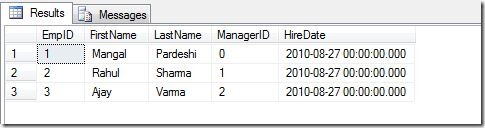
view

Case 2: You drop a column from the table.
Similarly when you drop a column from the table, the VIEW definition doesn’t get updated even though you have used wild card “*” in VIEW definition.  Now lets drop the column HireDate from the table and see what happens:
Note: In previous step I refreshed the View after adding the HireDate, so now HireDate is part of Emp view as well.

------------------------------------------------------------------------------------------------------
-- First Verify the data before dropping column
SELECT *
FROM Employees
GO
SELECT *
FROM Emp

-- Drop HireDate column from Table
ALTER TABLE Employees DROP COLUMN Hiredate
GO

-- Verify the data after dropping the column.
SELECT *
FROM Employees
GO
SELECT *
FROM Emp
GO

------------------------------------------------------------------------------------------------------

Now in this case HireDate column will get removed from table but the metadata of the VIEW still have its information stored so you will get the following error on selecting data from VIEW.
Msg 4502, Level 16, State 1, Line 1
View or function 'Emp' has more column names specified than columns defined.

The solution is, again refresh the VIEW definition by executing:

------------------------------------------------------------------------------------------------------
EXECUTE sp_refreshview 'Emp'
GO

------------------------------------------------------------------------------------------------------

Now you won’t get the same error.

Case 3: You drop one or more columns and add equal or more number columns to the table.
This case is even more dangerous as User selecting data from the VIEW can get wrong data under wrong columns and can create confusion.  I won’t explain this in detail, just execute following queries and you will realize what I’m saying.

------------------------------------------------------------------------------------------------------
-- Drop column LastName from table
ALTER TABLE Employees DROP COLUMN LastName
GO
-- Add Column DeptName with default value 'IT'
ALTER TABLE Employees ADD DeptName VARCHAR(10) NOT NULL DEFAULT 'IT'
GO

-- Verify the data
SELECT *
FROM Employees
GO
SELECT *
FROM Emp
GO
------------------------------------------------------------------------------------------------------

Final

Now if you see, the LastName column is not present in the table and you can also see the DeptName column in the table.  And interesting observation with VIEW is, though the data is exactly matching with the table but columns names are not correct.  We again need to refresh the VIEW to correct it.

------------------------------------------------------------------------------------------------------
EXECUTE sp_refreshview 'Emp'
GO

-- Verify the data
SELECT *
FROM Emp
GO
------------------------------------------------------------------------------------------------------

Back to normal now:
Last

What is the solution? 
Obvious prevention is don’t use wild card “*” while creating VIEWS.  But even listing out columns is just a prevention or I’d say it is a good practice.   Because even after listing out the columns, if you drop a column from the table that has been used in any VIEW you will still face problems.

The solution is creating the view using “WITH SCHEMABINDING” option.
From Books Online:  Binds the view to the schema of the underlying table or tables. When SCHEMABINDING is specified, the base table or tables cannot be modified in a way that would affect the view definition. The view definition itself must first be modified or dropped to remove dependencies on the table that is to be modified. When you use SCHEMABINDING, the select_statement must include the two-part names (schema.object) of tables, views, or user-defined functions that are referenced. All referenced objects must be in the same database.

Views or tables that participate in a view created with the SCHEMABINDING clause cannot be dropped unless that view is dropped or changed so that it no longer has schema binding. Otherwise, the Database Engine raises an error. Also, executing ALTER TABLE statements on tables that participate in views that have schema binding fail when these statements affect the view definition.

Let me show you one example with SCHEMABINDING:

------------------------------------------------------------------------------------------------------
-- Create View with SCHEMABINDING
CREATE VIEW NewEmp
WITH SCHEMABINDING
AS
SELECT
EmpID,
    FirstName
FROM dbo.Employees
GO

-- Verify the data
SELECT *
FROM NewEmp
GO

-- Now try to alter the table
ALTER TABLE Employees DROP COLUMN EmpID
GO
------------------------------------------------------------------------------------------------------

Now you will get the error:
Msg 5074, Level 16, State 1, Line 2
The object 'NewEmp' is dependent on column 'EmpID'.
Msg 4922, Level 16, State 9, Line 2
ALTER TABLE DROP COLUMN EmpID failed because one or more objects access this column.

Basically  WITH SCHEMABINDING has prevented the change that would affect the view definition.

Additional Information: 
A] If you want see the all the dependant objects on particular table you can use following script:

------------------------------------------------------------------------------------------------------
SELECT *

FROM sys.objects AS so
INNER JOIN sys.sql_expression_dependencies AS sed
    ON so.object_id = sed.referencing_id
WHERE so.type = 'V' AND sed.referenced_id = OBJECT_ID('dbo.employees')

GO
------------------------------------------------------------------------------------------------------

B] The following example creates a script that refreshes the metadata for all views that have a dependency on table dbo.employees:

------------------------------------------------------------------------------------------------------
SELECT DISTINCT 'EXEC sp_refreshview ''' + name + ''''
FROM sys.objects AS so
INNER JOIN sys.sql_expression_dependencies AS sed
    ON so.object_id = sed.referencing_id
WHERE so.type = 'V' AND sed.referenced_id = OBJECT_ID('dbo.employees')
GO

------------------------------------------------------------------------------------------------------

Source:
CREATE VIEW (Transact-SQL)
sp_refreshview (Transact-SQL)

Namaste!
- Mangal